

You are reading Part 4 of our 12-part Insurance Agency Authority Series.
Every insurance agency should enable multi-factor authentication, conditional access, administrative account separation, mailbox auditing, anti-phishing controls, secure external sharing, and consistent user onboarding and offboarding in Microsoft 365. For an agency with 15 to 30 employees, these controls reduce the risk of account takeover, fraudulent email, unauthorized data access, and regulatory compliance problems. Microsoft 365 should be actively managed and reviewed, not configured once and ignored. The strongest approach combines Microsoft settings with advanced email protection, security awareness training, identity monitoring, and ongoing alert review
The 7-Control Microsoft 365 Security Framework
Insurance agencies should organize Microsoft 365 security around seven control areas:
- Multi-factor authentication
- Conditional access
- Administrative account protection
- Email and phishing defense
- Data sharing and permissions
- Logging and alerting
- User lifecycle management
These controls work together. Enabling only one or two leaves important gaps.
1. Require Multi-Factor Authentication for Every User
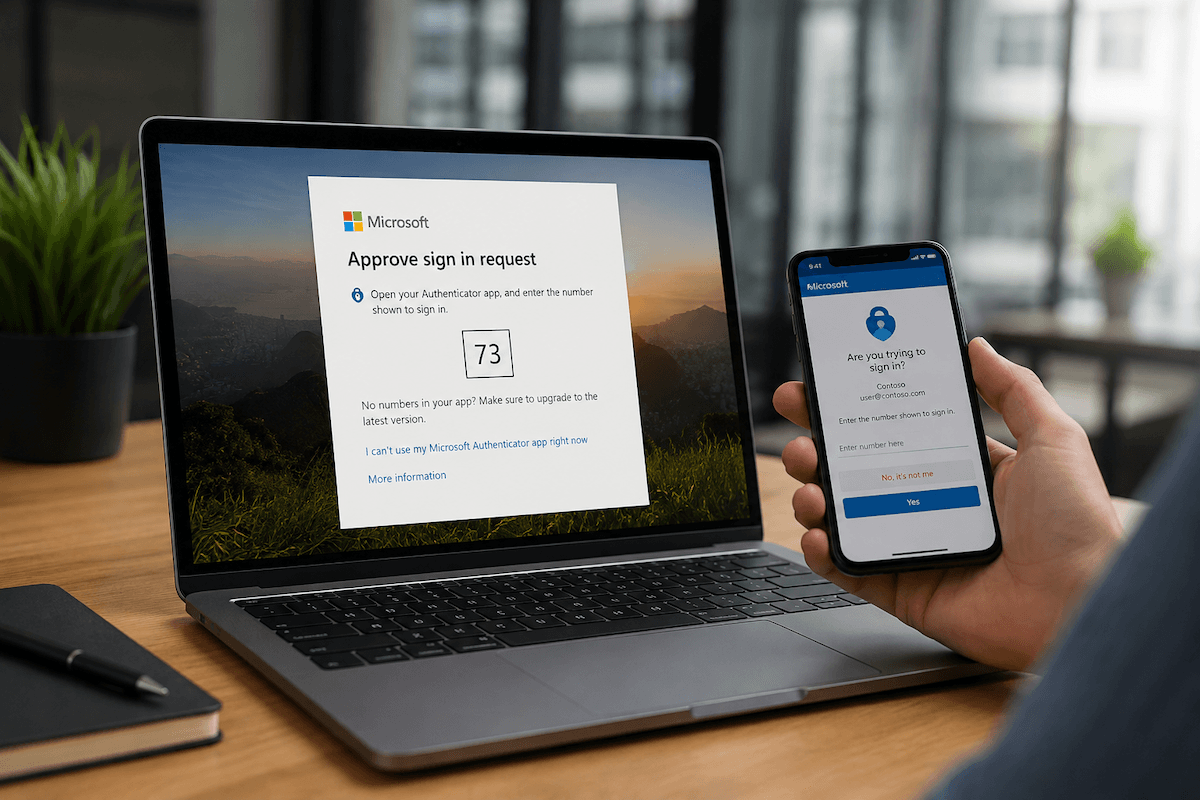
Multi-factor authentication requires a user to provide more than a password when signing in.
That second factor may include:
- A mobile authenticator application
- A hardware security key
- A verified biometric method
- A temporary access pass
- Another approved authentication method
Insurance agencies should enforce MFA for:
- Every employee
- Owners and executives
- Remote users
- Shared services where supported
- Administrative accounts
- Contractors with Microsoft 365 access
MFA should not be optional or limited to employees who work remotely. A compromised password can be used from anywhere.
Leadership should also confirm that MFA is actually enforced. A provider should not assume that all users are protected simply because some employees have completed an enrollment screen.
2. Use Conditional Access to Control Risky Sign-Ins
Conditional access allows Microsoft 365 to evaluate the circumstances of a login before granting access.
Policies may consider:
- User identity
- Device status
- Geographic location
- Sign-in risk
- Application being accessed
- Whether MFA was completed
- Whether the device meets security requirements
For example, a normal login from an agency-owned device in Midland may be treated differently from a suspicious login attempt from an unfamiliar country.
Conditional access can help block or challenge:
- Logins from prohibited locations
- Access from unapproved devices
- High-risk sign-ins
- Legacy authentication attempts
- Access to sensitive applications without MFA
These policies should be designed carefully. Poorly planned rules can interrupt legitimate work, while overly weak rules may fail to stop suspicious access.
3. Separate Administrative Accounts From Daily Accounts
Administrative accounts should not be used for routine email, web browsing, or document work.
A better approach is:
- One standard user account for everyday work
- One separate administrative account for approved management tasks
- MFA applied to both accounts
- Administrative access limited to people who need it
- Global administrator roles kept to a minimum
This reduces the chance that a phishing attack against a daily email account will also expose full administrative control.
Insurance agencies should also review administrative roles regularly. Former employees, prior vendors, and unnecessary accounts should not retain access.
4. Strengthen Email and Phishing Protection
Microsoft 365 includes baseline security features, but many insurance agencies need stronger protection.
Common threats include:
- Fake carrier messages
- Fraudulent payment requests
- Password-reset scams
- Executive impersonation
- Malicious attachments
- Credential harvesting links
- Vendor impersonation
- Conversation hijacking
A layered approach may include:
- Inky email security
- Anti-spam filtering
- Anti-phishing policies
- Safe link inspection
- Attachment scanning
- Impersonation detection
- BullPhish ID security awareness training
- Dark Web ID monitoring
- SaaS Alerts
Employees should also know how to report suspicious messages.
The Complete security package is designed to protect users, identities, email, and cloud services in addition to devices.
5. Review Sharing, Permissions, and Data Access
Insurance agencies frequently use Microsoft 365 to store and share:
- Client documents
- Policy information
- Claims materials
- Financial records
- Internal procedures
- Employee information
- Vendor documents
External sharing should be controlled.
The agency should review:
- SharePoint permissions
- OneDrive sharing
- Public links
- Guest users
- Shared mailboxes
- Distribution groups
- Former employee access
- Sensitive document locations
Broad access creates unnecessary exposure. Employees should generally have access only to the information required for their role.
The agency should also establish a process for approving external sharing rather than allowing unrestricted links.
6. Enable Logging, Auditing, and Security Alerts
Security controls are more useful when suspicious activity can be detected and reviewed.
Microsoft 365 monitoring should include:
- Sign-in history
- Risky sign-in alerts
- Administrative changes
- Mailbox forwarding rules
- New inbox rules
- Suspicious application consent
- Unusual file downloads
- Permission changes
- Deleted user activity
- External sharing changes
Mailbox forwarding deserves special attention. Attackers sometimes create rules that silently send copies of messages to an outside address.
Security alerts should flow into a defined response process. A notification that no one reviews does not meaningfully reduce risk.
A modern cybersecurity stack should combine Microsoft 365 controls with endpoint security, email protection, backup, monitoring, and user training.
7. Standardize Employee Onboarding and Offboarding
User lifecycle management is a major security issue.
A new employee should receive:
- A properly licensed Microsoft 365 account
- MFA enrollment
- Approved group memberships
- Appropriate file and application access
- Security awareness training
- A documented device setup
- Clear password and access instructions
When an employee leaves, the agency should promptly:
- Disable sign-in
- Revoke active sessions
- Reset credentials
- Remove administrative roles
- Secure the mailbox and files
- Transfer business data
- Remove the user from groups
- Review forwarding rules
- Recover equipment
Delayed offboarding can create security and compliance problems.
Microsoft 365 Security and Regulatory Compliance
Microsoft 365 security supports regulatory compliance, but using Microsoft 365 does not automatically make an agency compliant.
The agency still needs to manage:
- Access controls
- Data handling
- User permissions
- Security monitoring
- Incident response
- Retention requirements
- Documentation
- Vendor relationships
- Employee training
A regulator, carrier, or business partner may ask the agency to prove that controls are active and reviewed.
Preparing for compliance reviews requires documented Microsoft 365 controls, clear ownership, and evidence that security policies are being followed.
Common Microsoft 365 Security Mistakes
Insurance agencies should avoid these mistakes:
Enabling MFA for Only Some Users
One unprotected account can still expose the business.
Using Shared Passwords
Shared credentials reduce accountability and make offboarding more difficult.
Keeping Too Many Global Administrators
Excessive privilege increases the impact of a compromised account.
Ignoring Legacy Authentication
Older login methods may bypass stronger controls.
Allowing Unrestricted External Sharing
Public links can expose sensitive files.
Failing to Review Mailbox Rules
Attackers may create hidden forwarding or deletion rules.
Leaving Former Employee Accounts Active
Old accounts can become an easy path into the environment.
Assuming Microsoft Defaults Are Enough
Default settings may not match the agency’s actual risks.
Example – Securing Microsoft 365 for a 26-Employee Agency
Consider an insurance agency with:
- 26 employees
- Microsoft 365 Business Premium
- Two offices
- Several remote employees
- Multiple shared mailboxes
- No formal quarterly security review
A review finds:
- Three users without enforced MFA
- Two former employee accounts still active
- One mailbox forwarding rule sending messages externally
- Too many global administrator accounts
- Broad SharePoint sharing permissions
- No documented offboarding checklist
The remediation plan includes:
- Enforce MFA for all users
- Disable inactive accounts
- Remove unauthorized forwarding
- Reduce administrative roles
- Review external sharing
- Create onboarding and offboarding standards
- Add ongoing alert review
- Document the controls
The result is a more controlled environment with stronger identity protection and clearer accountability.
Questions to Ask Your IT Provider
Ask:
- Is MFA enforced for every user?
- Are conditional access policies in place?
- How many global administrators exist?
- Are administrator accounts separated from daily accounts?
- Are mailbox forwarding rules monitored?
- Is external file sharing reviewed?
- How are risky sign-ins handled?
- Are employee accounts disabled immediately after departure?
- Is security awareness training included?
- Are Microsoft 365 alerts actively reviewed?
- How are compliance records documented?
- What is included in the monthly agreement?
What to Look for in a Provider
A strong IT provider should be able to explain:
- Which Microsoft 365 controls are enabled
- Why each control matters
- How alerts are handled
- How employees are supported
- How access is reviewed
- How settings are documented
- How the environment is improved over time
A provider should not simply say, “Microsoft handles the security.”
A qualified Permian Basin IT provider should clearly explain how Microsoft 365 identities, email, data, and administrative access are protected.
Conclusion
Microsoft 365 security is one of the most important parts of an insurance agency’s technology environment. Agencies in Midland, Odessa, Lubbock, San Angelo, and the surrounding Permian Basin should protect every identity, limit administrative access, control data sharing, review alerts, and standardize employee onboarding and offboarding.
The strongest result comes from combining Microsoft 365 configuration with user protection, endpoint security, monitoring, documentation, and ongoing technology alignment.
Explore managed services that protect Microsoft 365, users, devices, and business operations through proactive security management.
